
The steps you need to take to set up default settings for marketing emails and instructions on how to create a new marketing email template.
How to Create Marketing Emails
Marketing emails are custom templates that are not connected to the enrolment process and include an opt-out (eg invite to musical night, opening day or virtual tour). These types of emails are always triggered by staff or automation.
NB: Marketing emails, by law, must give the parents an option to opt-out. Marketing emails are therefore the option schools should use for all communication that is not directly related to the enrolment process.
Please follow this step by step guide to learn how to set up marketing emails.
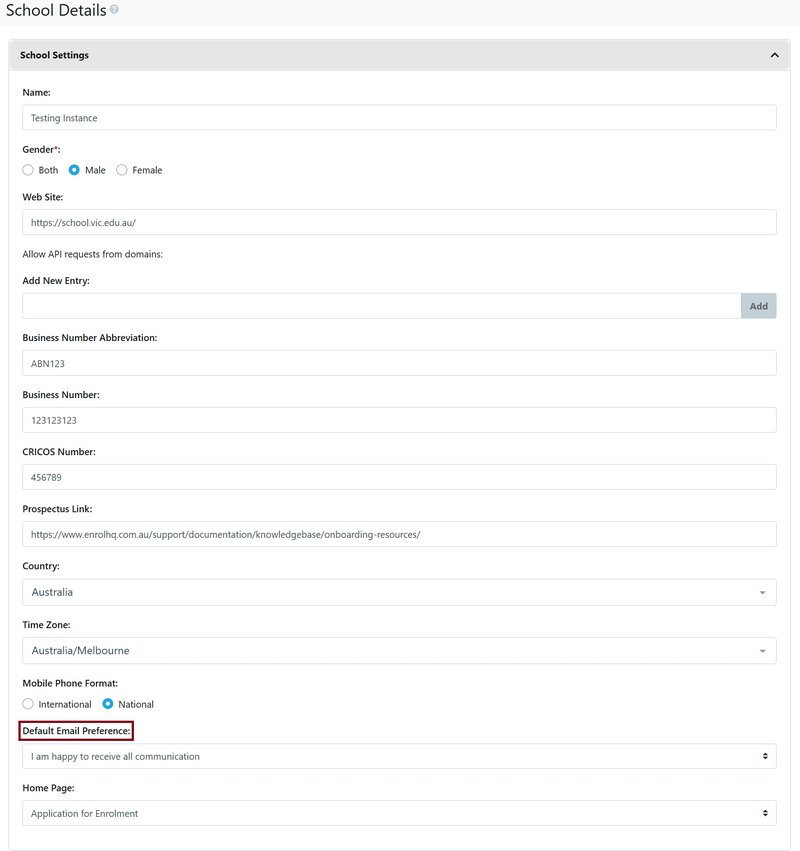
Choose default settings
- Settings > School Details and
- Set a Default Email Preference at the bottom of School Settings
This sets an automatic option for all who haven’t made their own preferences.
Set up Unsubscribe Options/Re-label
- Email Settings > Email Preferences
View and adjust the options for different marketing emails.
NB: If parents click the unsubscribe button they will be presented with these options:

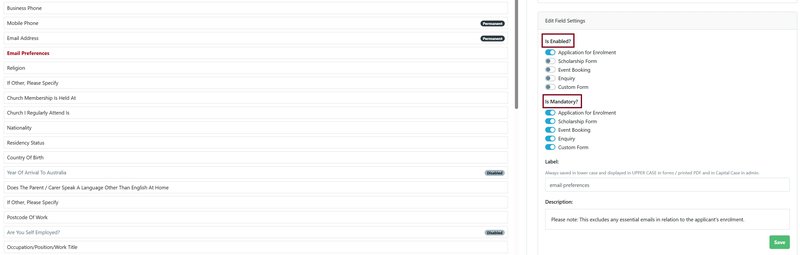
Turn on Email Preferences in the Enrolment Process
- Settings > Form Fields > Parent > Email Preferences
- Enable the preferred options and where in the enrolment process the email preferences can be selected.
Set Up the Email Templates
- Email Settings > Templates > Marketing
- Add your template and Preview

