
Set Up the Email Template
For full details on how to create an automated email please click here: Create Automated Emails
- Email Settings > Templates > Custom > Add
- create a Staff Custom template Called ‘Re-uploaded Documents by Carer’
Copy and paste (Ctrl+C, Ctrl+Shift+V) directly into the template:
Dear {{ campus.registrar_title }},
{{ user_parent.first_name }} {{ user_parent.last_name }} has uploaded a new document for {{ profile.first_name }} {{ profile.last_name }}, {{ profile.entry_grade_label }}, {{ profile.entry_year }}.
Please go to the record to verify the document.
Create an Automation
To read how to create an automated email please click here: Create Automated Emails
- Automation > Add

- Name - Automated name same as template name i.e. ‘Re-uploaded Documents by Carer’ this makes it easier to identify.
- Email Template - Select your template from the ‘Custom Template’ dropdown.
- Carer SMS template - not applicable for staff.
- Change Application Status to - Select the Enrolment Journey stage this Automation will move the student profile (not applicable).
- Add to Student Profile Category - you can add settings to the Student Profile Category via the Automation process if applicable.
- Trigger Event - select ‘Carer Re-Uploaded Unverified Documents’
- Set the Delay to be 0 hours. This means the email will be sent to the staff member immediately after carers re-upload an unverified document.
- Save.
Choose Automation Recipients allows you to select specific groups based on the options shown (optional)
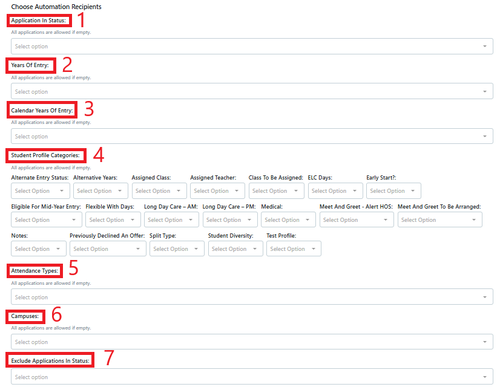
In an automation all of these selections are optional
- Application in Status
- Years Of Entry
- Calendar Years of Entry
- Student Profile Categories
- Attendance Types
- Campuses
- Exclude Application in status
- Save
Important Notes:
The automation timing only works when the trigger has not passed.
- The Automation will send a separate email for each document type you've unverified.
- It will only send one email per document type unless you have changed the status of the document to yes/not validated yes and back to no. (Imagine parents uploading 6 documents for each page of the school report - this happens! and you'd receive 6 emails) Therefore, we notify you that a document type has been uploaded, but only one notification per type.