How to merge duplicates if parents unintentionally set up two profiles for the same student.
How Duplicate Profiles Occur
Duplicate Profiles can occur if the parents unintentionally set up two profiles for the same student.
A common example is one parent creates a Profile uses one email address to make an enquiry or book a tour and then a different email address to complete an Application of Enrolment. This creates one Parent 1/User Parent for the Profile in Enquiry/Booking stage and another Parent 1/User Parents for the Profile in application stage.
Another way duplicates can be created is by selecting "new" instead of "child's name" when starting a new Custom Form. They effectively create a sibling record for the same child.
If there are more than two duplicate Profiles the following step must be repeated until all Profiles are merged into one.
Please check for siblings before merging.
If there was an Event booked with a sibling the Event booking details will be lost and you will need to manually add the Event booking to the sibling after the merge is completed.
How to Merge Profiles
- Make sure Parent 1 is the same person with the same email in both Profiles.
Profile 1: Student (Mary) - Parent 1 (Elizabeth) (USER PARENT) & Parent 2 (Daniel)
Duplicate: Student (Mary) - Parent 1 (Daniel) (USER PARENT) & Parent 2 (Elizabeth)
If this is the case, you need to do the following:
- Switch Parent 1 and Parent 2 so that profile 1 and the duplicate have the same parent as Parent 1
Profile 1: Student (Mary) - Parent 1 (Elizabeth) (USER PARENT) & Parent 2 (Daniel)
Duplicate: Student (Mary) - Parent 1 (Elizabeth) & Parent 2 (Daniel) (USER PARENT)
- Switch Primary Point of Contact so that Parent 1 is the User Parent in both profile 1 and the duplicate
Profile 1: Student (Mary) - Parent 1 (Elizabeth) (USER PARENT) & Parent 2 (Daniel)
Duplicate: Student (Mary) - Parent 1 (Elizabeth) (USER PARENT) & Parent 2 (Daniel)

- If you have any duplicate profiles EnrolHQ allows you to merge the profiles so that the student only has one profile. Go to All Prospective > Search for the student profiles > Select the duplicate profiles > Click on Merge Profiles.

You will be asked which profile you would like to keep. Always choose the one that is furthest along in the Enrolment process.

The other profile will be automatically moved to Trashed and can still be accessed in case something is wrong.
In the last step, the system issues a warning message.

Be certain that profiles are duplicates as clicking on Merge will make the User Parent in the chosen application Parent 1 and Parent 2 will become a Non-user parent. Merging the wrong profiles an create some data loss.
You can check for duplicate profiles two different ways.
- Contacts > All Prospective > Show more > Other - Duplicates Only

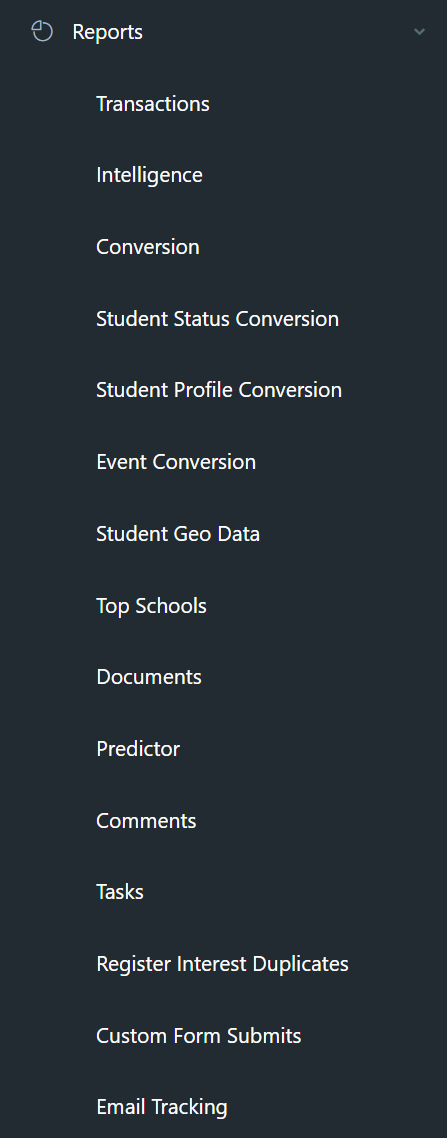
- Reports > Register Interest Duplicates
This report will allow you to identify duplicate enquiries and merge profiles if required.