
EnrolHQ is an "Integration" on Zapier
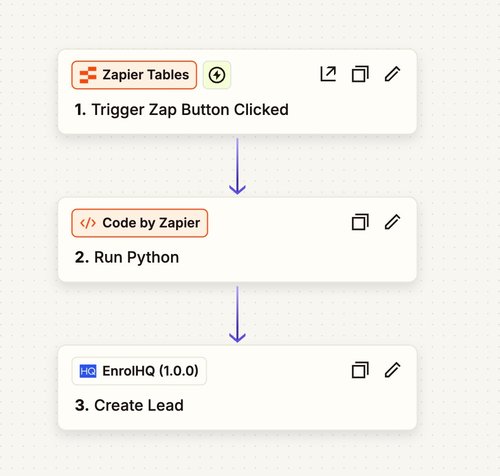
Schools can seamlessly push leads into EnrolHQ using Zapier. By integrating lead generation widgets or marketing automation tools (available here: Zapier Marketing Automation), schools can collect prospective parents' names and email addresses.
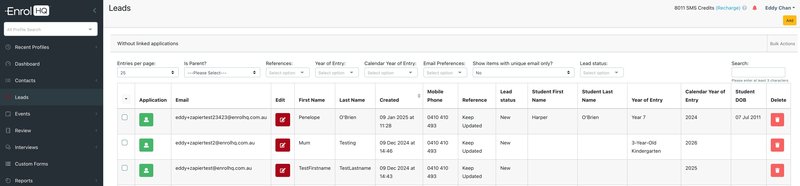
Once a parent's details are added to EnrolHQ via Zapier, schools can use EnrolHQ's automation features to send targeted emails, guiding parents to the next step in their enrolment journey—whether it's completing an application form or booking a school tour.
This article documents how to set-up your "Zap".
Generate an API key in EnrolHQ for Authentication in Zapier
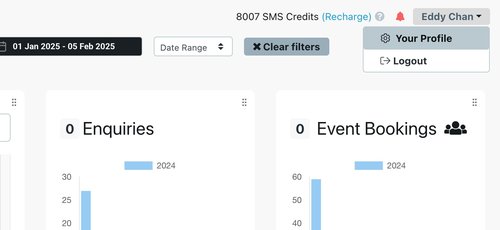
The first thing you will need to do is generate an API key inside EnrolHQ. Click on your name in the top right corner in the EnrolHQ dashboard. Then click on "Your Profile"
You will see your profile page where there will be an 'Actions' box with a yellow "Create API Token" - click this, then copy and paste the API Token that is provided. Please note that if you create an API Token, it will invalidate any previous tokens that you have created for your profile.
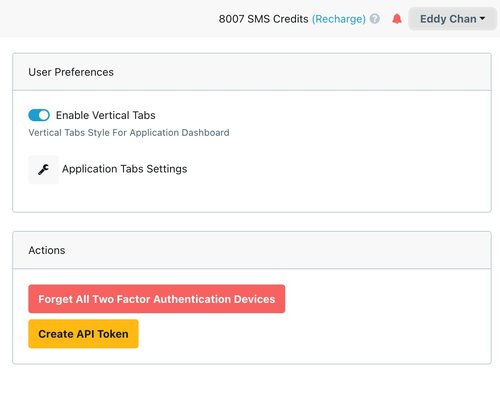
If you don't see the yellow "Create API Token" button this means your user permissions to create an API token aren't added yet. You will need to contact EnrolHQ support using support@enrolhq.com.au to request API access first.
Create your Zap (inside Zapier)
Inside Zapier, you will click "Create" in the top right hand corner and choose the "Zaps" option.
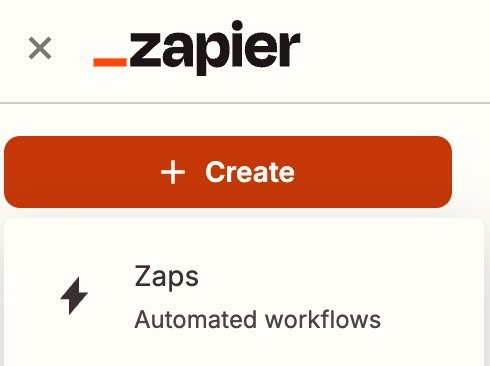
This will bring up a modal window with all the possible integrations that are available inside Zapier. You will need to add the lead generation tool like Hubspot, Google Forms and then also add EnrolHQ.

To find EnrolHQ use the search bar. Then click on EnrolHQ to add it to your Zap.
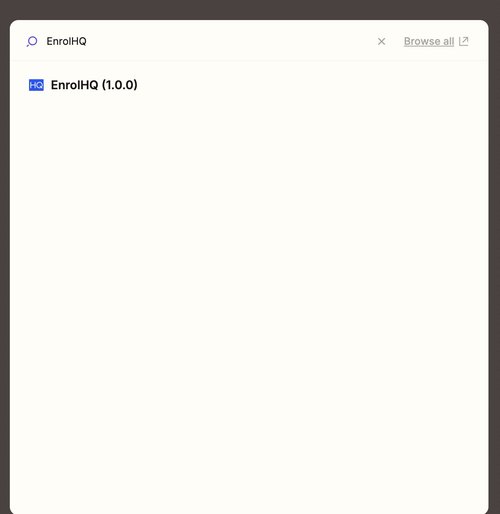
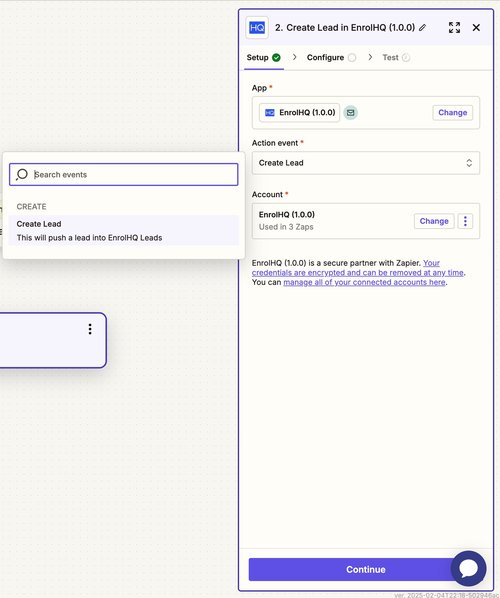
Your workflow should have 2 boxes - the first one on top is the integration that provides the lead data, in this example here we're grabbing lead data from a table that we've uploaded. The second box is where the data goes, which is into EnrolHQ Leads.

To setup the EnrolHQ integration you should choose "Create Lead" as the action event. You will also click on the Account box to add your EnrolHQ credentials.
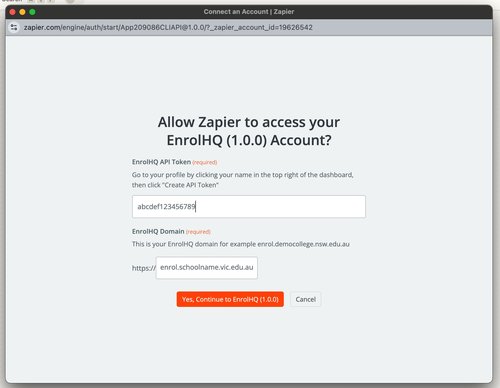
The "Account" section brings up a modal that lets you copy and paste your API key that you created in EnrolHQ and also type in the domain of your EnrolHQ instance. It is usually "enrol.<<school name>>.vic.edu.au" or similar
Finally you have to go to the configure step to map the fields from the integration that provides the data (the top box) to the EnrolHQ Lead fields. The minimum required is Lead Email address, Lead First Name and Lead Reference (GUID from EnrolHQ). What is a Lead Reference? Read on in the next session on how to create these.
Creating a Lead Reference in EnrolHQ to use in Zapier
In EnrolHQ you can create multiple lead forms to keep track of where your leads are coming from. To receive a lead from Zapier, you will need to create a lead form for receiving leads. Do this by going to Settings > School Details > Lead Settings.
You can call it something descriptive to note where the leads are coming from like "Hubspot Leads". In the example below we are calling the Lead Form "Keep Updated"
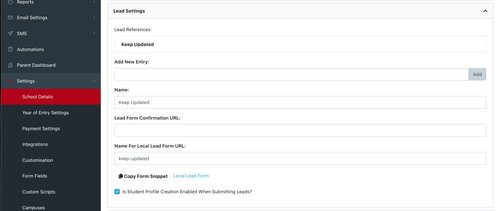
Now click the "Copy Form Snippet" and copy it into a text editor. You are looking for a line that looks like the following close to the bottom of the text:
"<input name="reference" type="hidden" value="898bf431-e622-4048-9932-8ce2dc95000e" />"

Copy the value GUID and paste it into Zapier as a hard coded value for Lead Reference (GUID from EnrolHQ). Please note that that this GUID is different for each Lead Form.
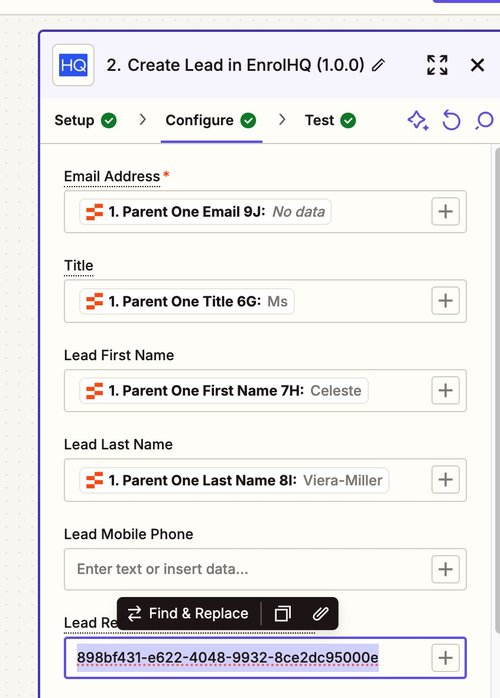
Now you will be able to test and publish inside Zapier.
Note: If required, Zapier can automate the consolidation of multiple fields and write them to our Comments field. As our set of EnrolHQ lead fields is set, combing answers may be a way to add additional info to the record.
Please email support@enrolhq.com.au if you need assistance.
Available Fields in EnrolHQ Leads
| Type | Label | Key | Example |
|---|---|---|---|
| Input Field | Email Address | somebody@gmail.com | |
| Input Field | Title | title | Mr, Mrs, Ms, Dr, Prof |
| Input Field | Lead First Name | first_name | Penny |
| Input Field | Lead Last Name | last_name | Olson |
| Input Field | Lead Mobile Phone | mobile_phone | +61412123123 |
| Input Field | Lead Reference (GUID from EnrolHQ) | reference | See below where create Lead Form and grab GUID |
| Input Field | Year Level of Entry | entry_grade | -5,-4,-3...1,2,3...12 |
| Input Field | Calendar Year of Entry | entry_year | 2026, 2027 |
| Input Field | Comment | comment | Some comment goes here or consolidated answers you want to save |
| Input Field | Student First Name | student_first_name | Bart |
| Input Field | Student Last Name | student_last_name | Simpson |
| Input Field | Residential Address Apartment | residential_address_apartment | 61 |
| Input Field | Residential Address Street Address | residential_address_street_address | 89-97 Jones St |
| Input Field | Residential Address Suburb | residential_address_suburb | Ultimo |
| Input Field | Residential Address State | residential_address_state | NSW |
| Input Field | Residential Address Postcode | residential_address_postcode | 2007 |
| Input Field | Student DOB | student_dob | 2012-08-08 |