
How to ensure your setup allows for a single parent or split parents to sign Custom forms independently.
Single Parent
If the parent relationship "single parent", "mother deceased" or "father deceased" is selected, a checkbox can be provided to allow the application to proceed only with one parent's details.
- Settings > School Details > Parent Relationships
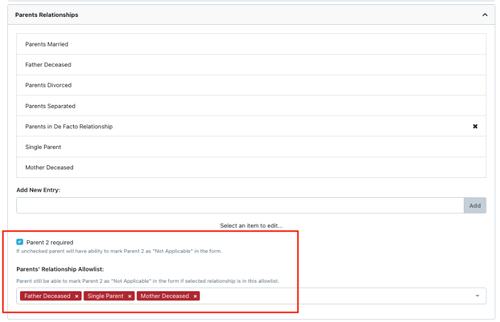
Only the parent statuses listed will qualify for single/ split signatures.
Some Schools will add all categories in case parents are not both available at the same time or location.
Here is a short video about Setting up Video - Split Signatures
Single Parent Signature Option in Custom Forms
These settings will also work on custom forms. If parent relationship "single parent", "mother deceased" or "father deceased" is selected you need to use the following forms:
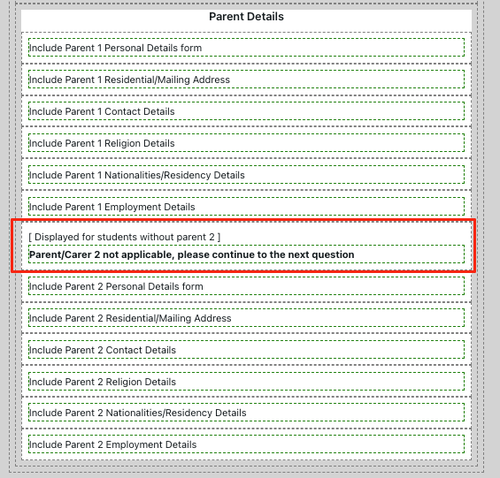
This will hide the parent/carer 2 questions if there is no parent 2 for the student profile.
Split Parents
- Settings > School Details > Parent Signatures
If the parent relationship "parents divorced" or "parent separated" is selected, the ability for split signature workflow is enabled.
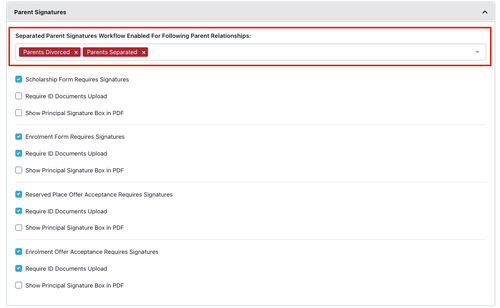
The parents can now select the split signature workflow.
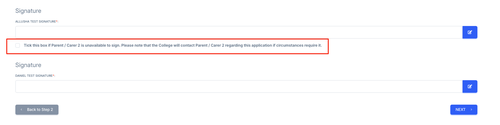
Split Parents Signature Option in Custom Forms
If the parent relationship "parents divorced" or "parent separated" is selected and the parents have chosen to do a split signature process, you can ask for a second signature under the Custom Form tab in the student profile.

The second parent signature needs to be requested after the first signature has been received.
Split Parent Signature Example
Parent 1 completes the form and ticks the box stating that Parent/Carer 2 is unavailable to sign.
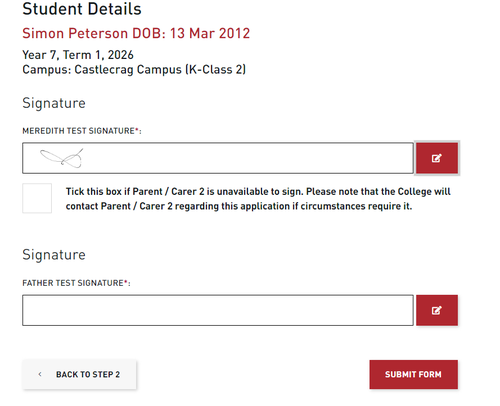
When the notification of the form submission has been received staff will go to the the Custom Form in the Student Profile and select "Request Acceptance from Parent 2"

Parent 2 will receive an email with a link to the form and will need to use 2FA to sign the the form.
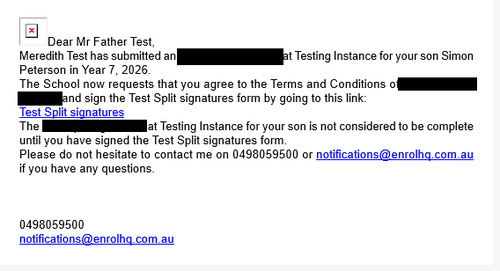
Clink on the link (setup as {{ third_party.form_url }} ) this will provide a page
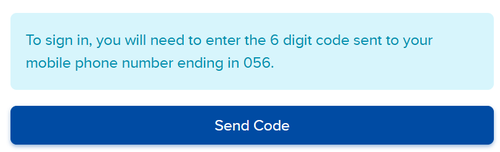
When the link is open the form can be completed by Parent 2.
1 Complete form is displayed (only Parent 2 personal details are shown)
2 Select signature
3 Submit form
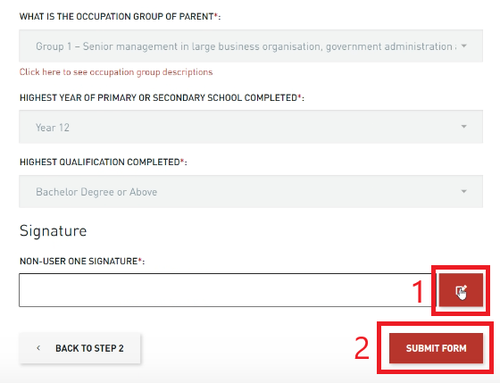
It should be noted that the staff member who requires the form to be completed with both signatures will need to download the completed form after the second signature has been added.