
This captures future enrolments from phone queries
Lead Form Overview
These forms are created in EnrolHQ and can be embedded in a website to gather partial leads. They enable schools to capture leads while keeping form fields minimal, avoiding the burden of extensive information requests for simple actions like downloading a prospectus or subscribing for updates. The link to the lead form can also be provided to Reception, for example, to complete instead of putting a potential parent to voicemail or sending an email to the Enrolments Department with a phone message. This ensures all phone queries are captured in EnrolHQ for easy follow up.
Some schools will use lead forms as a helpful marketing tool to capture a lead and start drip-marketing emails to entice a parent to take a tour or submit an application.
Lead forms require minimum information and can be set up to just collect an email address.
Leads that are collected are stored in a separate Leads Report as they do not yet have enough information to become contacts/profiles in EnrolHQ.
Mandatory profile fields are a contact name and email address.
Creating a Lead Form
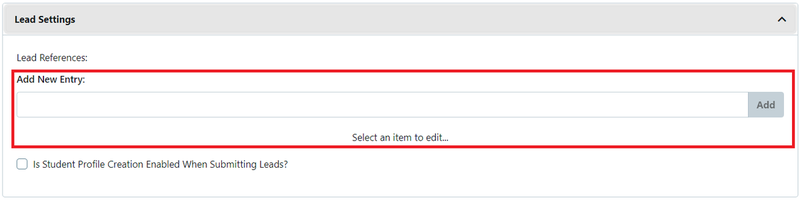
- Settings > School Details > Lead Settings
This is where you make up what forms you want to use.
Type the name of the form and select Add
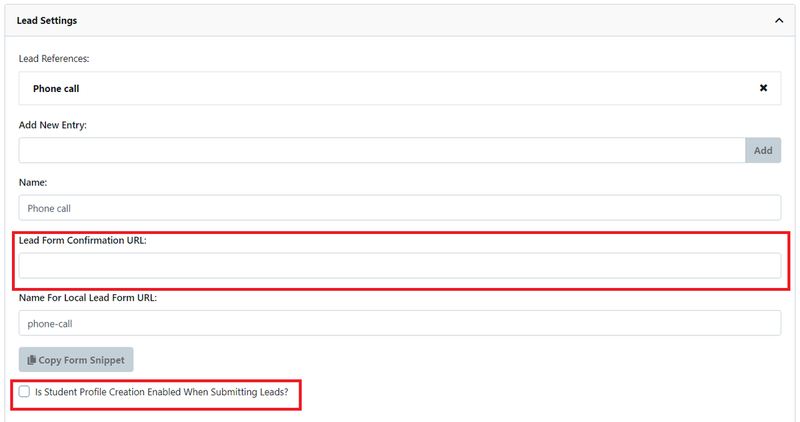
You can add the a lead form confirmation URL when the form has been completed if required
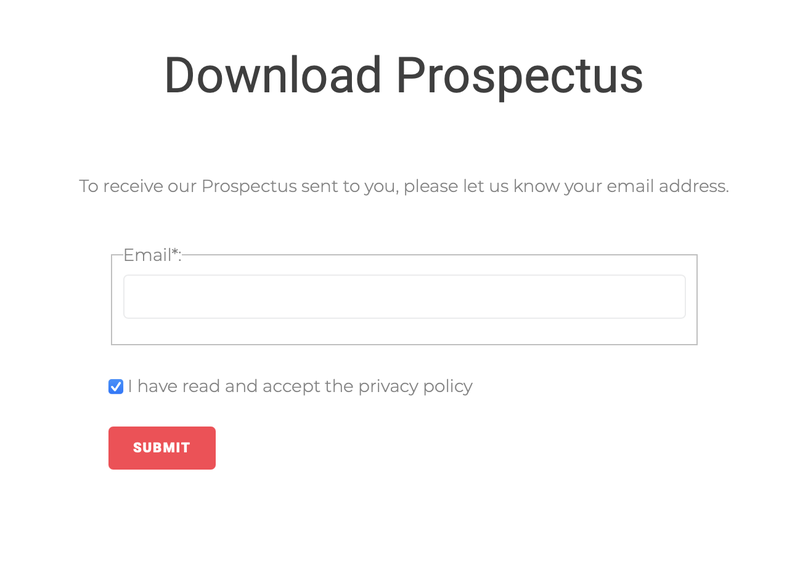
- Embed the form on the website
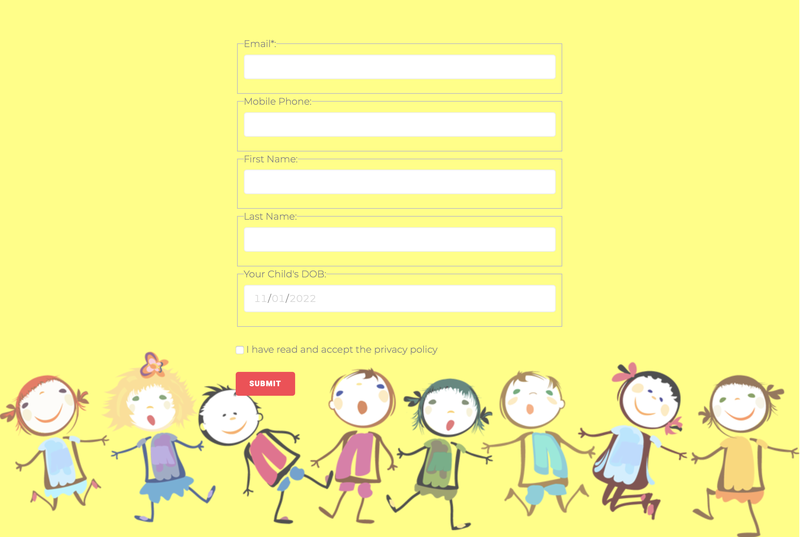
This prompts the parent to fill in their email address to receive the information they’re looking for and automatically asks for permission to send them emails by accepting the mandatory privacy policy.
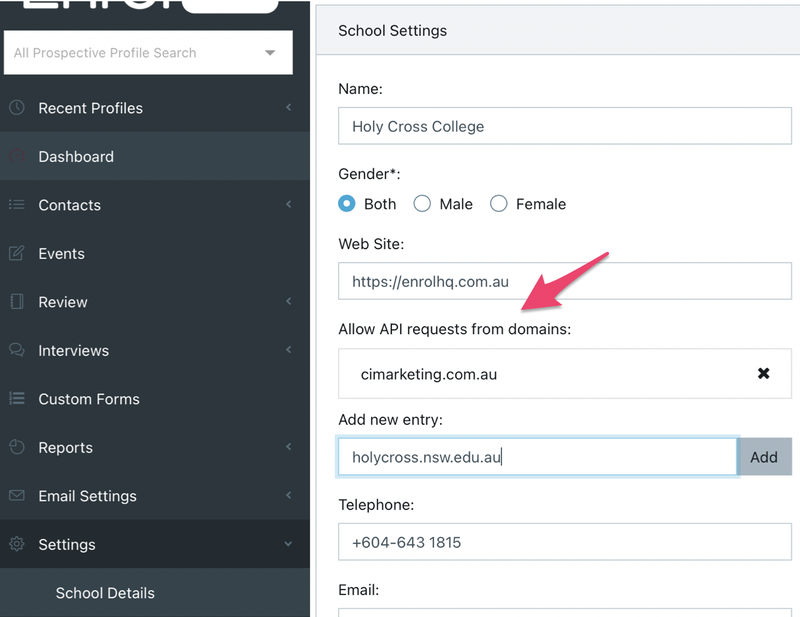
- Settings > School details and type in the domain name under Allow API requests from domains
This flags that this form is linked to your website and restricts people from putting it on any website.
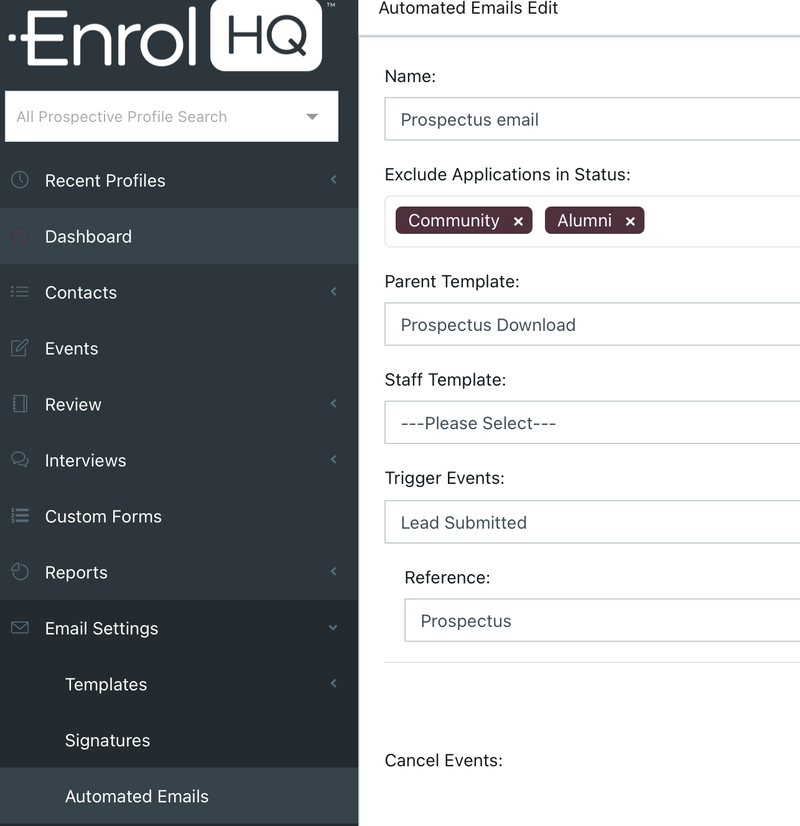
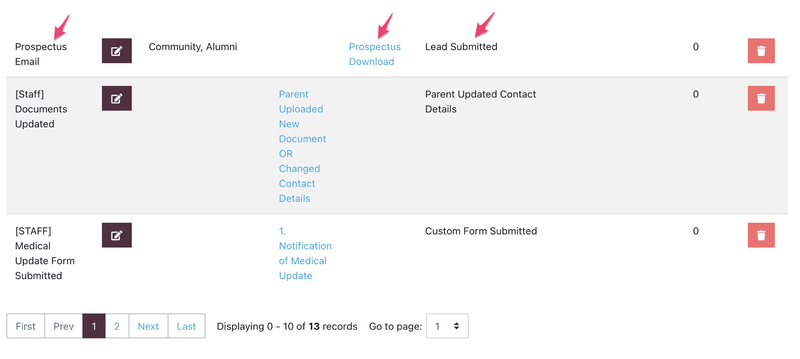
Create an automated email linked to the different lead references.
The various references are linked to different downloads on the schools website and can be set up as automatic emails that send out information requested. For example, if a parent wants to see a prospectus they can enter their email address and receive an automated email with this information seconds later. In the meantime, a lead with their contact details and a log of the information sent is made in the leads report.
In a new Automation select the email template providing information to the parent and and create the setup by selecting the Trigger Event 'Lead Submitted' and the Reference. Set the Delay to 0 hours.
Additional Automations to drip feed information to prospective parents can be set up using the same Trigger Event by adding hours to the Delay function (eg 168 hours = 7 days later).
- Set up your own style
Change the background, different questions/information that has to be answered in the form or redirect the parent to a website with more information about the subject. Note: This requires coding knowledge. Maybe get your IT or web designer involved.
Moving Leads into Profiles
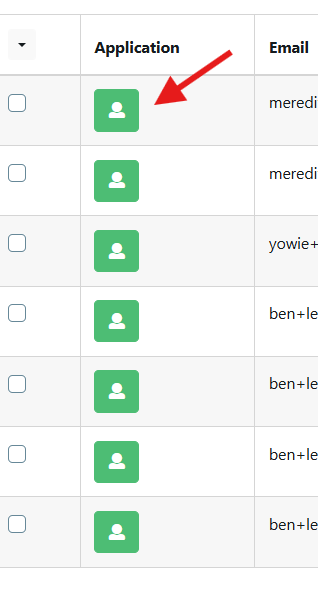
Click on the profile icon and fill in the missing information.
How to use the Leads
There are various filters that can be helpful in order to sort the leads. The report can filter between different references that you have created such as Prospectus or Scholarship Pack. It can also remove multiple leads to present a clean list without any duplicates.
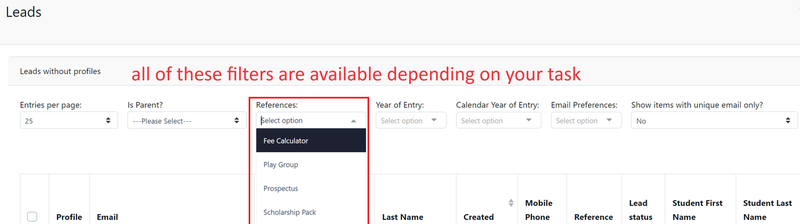
An important filter is the “is parent” Yes/No filter, which shows if the lead is a current parent or not (has a profile created). This is important if schools do not want to send out emails if the lead is already inside the main profile section of EnrolHQ.
Schools can use leads to send marketing emails based on the information parents asked for. It may be to invite parents to an Open Day or set up automatic emails to go out 30, 60 or 90 days after last contact to keep the leads warm and your school at the top-of-mind.