Commonwealth Bank Payment Gateway setup BPOINT
Instructions on how to set up integration with BPOINT.
Add BPOINT to Your Payments Ecosystem
Please see below for BPOINT instructions. See the User Permissions dropdown, check that has API inside BPOINT, if not you will need to get in touch with CommBank to have API added to BPOINT.
To connect BPOINT to EnrolHQ, you will need to register for a merchant account, completing BPOINT's Sign Up process.
Gather Your Credentials From BPOINT
Required resources:
- Administrator or ManagerT1 Access to https://www.bpoint.com.au/backoffice (PROD) Or https://bpoint.uat.linkly.com.au/bpoint/ (UAT)
Rules to be follows:
- Merchant Facility must be either Checkout or Enterprise Package
1 Log into BPOINT Back office
https://www.bpoint.com.au/backoffice/logon
2 Navigate to Settings > Manage Users
3 Click New user button

4 Enter user details and select User role as API
5 Setup new user as follows:
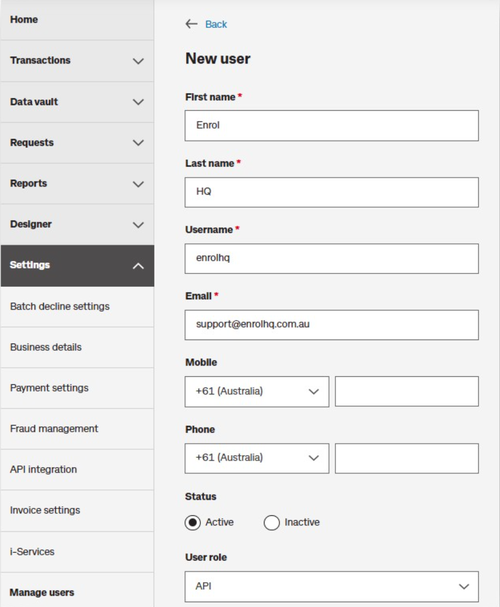
6 Click Save button

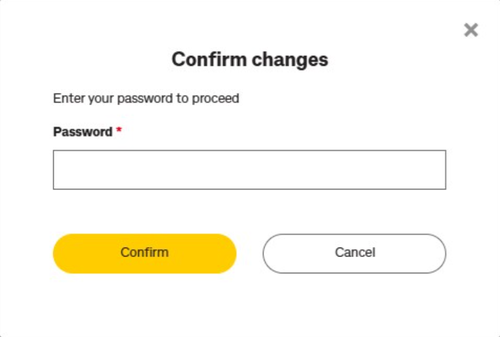
7 You will be prompted to enter your Administrator password to Confirm changes
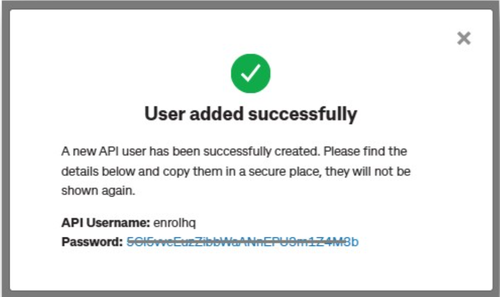
8 You will get a successful message providing you with the API user password on screen. This password is to be used for your API integration and cannot be changed. API users can only authenticate through API calls and cannot log into the back office
Connect/Update BPOINT to Your EnrolHQ Instance
- Log into your EnrolHQ Account
- Navigate to Settings > School Details from the menu on the left
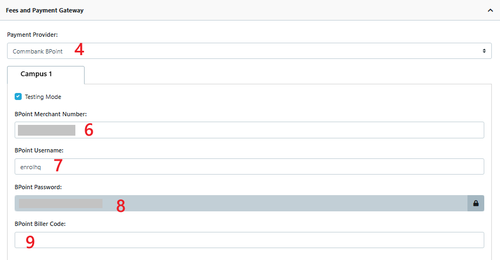
- Go to the Fees and Payment Gateway box at the top of the page
- Select Commbank BPOINT from the Payment Type Dropdown
- Complete the field descriptions to connect. Field descriptions are as follows:
- BPOINT Merchant Number – please put your Merchant Number here.
- BPOINT Username – this field is for the Username.
- BPOINT Password – please use the user's password.
- BPOINT Biller Code - Optional
- Select Testing Mode – this describes whether you are connected to a BPOINT Production or a Sandbox Environment. Ticking 'Testing Mode' will send your transactions to a Sandbox Environment. Production is used to process real transactions. Sandbox is used for testing purposes only.
- Click Save at the very bottom of the page. You have successfully connected BPOINT to EnrolHQ!
- Contact EnrolHQ to advise. They will submit a test transaction to confirm the banking is active.