
Shows what the top previous schools your students are coming from.
Customised School and/or Suburb Groupings
This is relevant for schools that use feeder schools
Remember to enable the "apply grouping" setting in the Geo Data report to activate your customised groupings.
You can add several schools together so the number that displays in the report includes the schools as a group.
- Settings > Geo Locations Groups

- Label - description of the group of schools
- Kind - either suburb or school
- Location - type beginning of the School Name then the relevant suburb to reduce the list length to select the correct School
- Save - after you locate each School
- Save and Back - when all the schools have been added
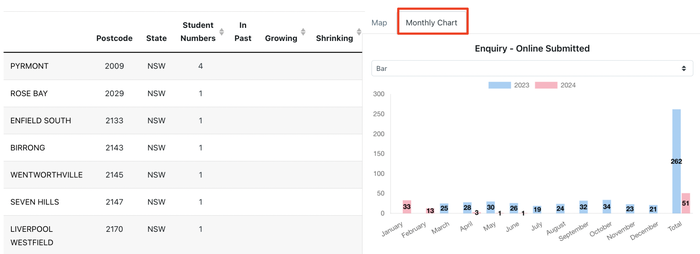
Compare Submissions in a Chart
Student numbers for each stage can be displayed as a Monthly Chart instead of a map view.
What is Top Schools Report?
The Top Schools report shows the top previous schools that your students are coming from. It can be used to see whether the numbers are growing or shrinking compared to a period in the past.
You can sort the student numbers based on actions which allows you to see a factual overview of how students in each stage of the enrolment process are connected to previous schools.
What can you see:
- Top schools based on student numbers
- Growing schools vs shrinking schools
- Which schools your enquiries are coming from
- Which schools your event bookings are coming from
- Which schools your applications are coming from
- Compare student numbers for each school against the total enquiry/event/application/offer numbers year against year
How it works:
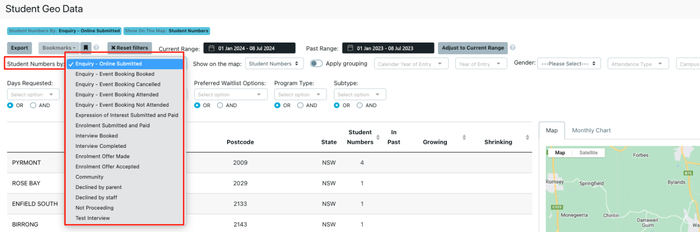
- Select what stage/action you want to report
- Choose a current and past timeframe to compare
- Apply any additional filters for more detailed information
- If the student has a past school registered and has done the action you have selected within the selected timeframe, the report will display a number 1 in the respective schools column in the report
Filters
All filters available are the same as provided in Student Status Conversion report.
Year of Entry, Calendar Year of Entry, Gender, Attendance Type and Campus - are standard filters on all EnrolHQ reports that allow you to restrict the results if you have them set up in Settings > School Settings > Attendance Type / Settings > Campuses / Settings > Year of Entry Settings.
Student Profile Categories provides additional selectors if you have them setup in Settings > School Settings > Student Profile Categories.
Tip: All the information highlighted in blue is the current selection being displayed. As you add additional selections they are added adjacent to the original selections.
Export - allows the selection you have made available in XML format

Bookmarks - allows you to save a particular set of filters to be used in the future

Reset Filters - allows you to remove all your selected filters (this is a good idea in case you have inadvertently selected a filter that affects your reporting)

Stages - allows you to select what information is displayed. Read more about stages and how they work here: Student Profile Conversion Report
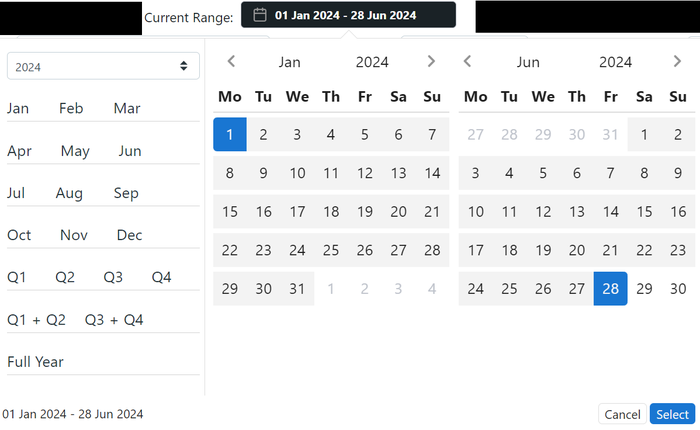
Current Range - select the reporting period required. The report will only show student numbers within the selected period
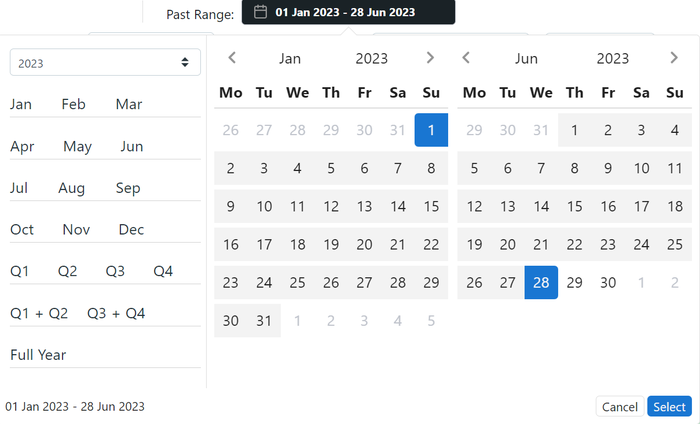
Past Range - necessary when comparing two time periods against each other. Use past range to select the previous time period for comparison
Adjust to Current Range - adjusts the past date range to match the current date range only for the previous year

Show on Map - select what type of information you want to show on the map

Apply Grouping - if you have applied customised grouping selections under Settings > Geo Location Groups - the grouping can be enabled/disabled using this setting

Postcode - the option to search and select a specific postcode

Why Do My Numbers Not Add Up?
The numbers in this report are based on EnrolHQ Profiles with the Current School field completed. If the Current School question is not completed for certain Profiles the student number result on the report will be different from the total number of submitted forms.
- Settings > Form Fields > Profile > Current School -to enable the question
The numbers are restricted by the selected timeframe. If you have put a date range restriction between Jan 2025 - July 2025 and will not see any numbers for 2024.
The numbers might not match due to students who enrolled prior to EnrolHQ and have manually entries.