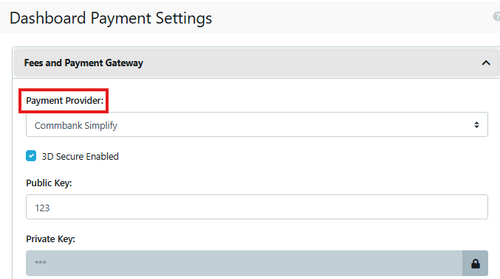
EnrolHQ integrates with CommBank BPay, Westpac Payway (which includes St George and BankSA), NAB Direct POST as part of the standard system.
Fees and Payment Gateway
EnrolHQ integrates with different banks as part of the standard system.
To get the credit card payments set up, please ask your Finance team to contact the bank to get any Usernames/Passwords, API Keys and Merchant Numbers required for the credit card facility your school will use. Then you will need to input these into the system and test with a $1 credit card payment.
Go to Settings > Payment Settings and complete the following:
Every school must setup their own Fees and Payment Settings.
EnrolHQ has a list of the different payment option details Available Banks for Online Payments
There are additional settings that need to be completed for the Finance Department.
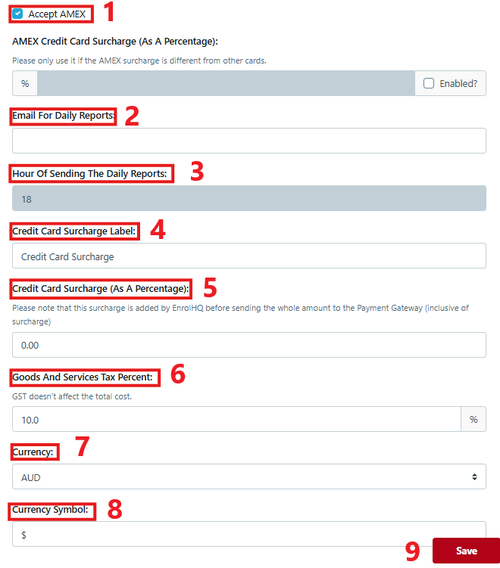
- Accept AMEX: - this is off by default however if on the school can choose to add the AMEX surcharge to the parent's payment. American Express uses two security features: the CVV (Card Verification Value) and the CID (Card Identification Data). The CVV is a secure 4-digit code derived from your card number, which is not stored on the magnetic strip, making it visible only on the card itself. The CID, located on the back of the card, is similar to the 3-digit code used by Visa, MasterCard, and Discover. This number is not stored on the magnetic strip, nor is it displayed on the front of the card. Add the percentage and activate via the tick box.
- Email For Daily Reports: - generally this email address is a generic finance email e.g. fees@myschool.nsw.edu.au
- Hour of Sending the Daily Reports: - this is the cut off time for the receipts from EnrolHQ (24 hour clock). Be aware that parents can make payments that will appear in the bank but not be included in the report due to this cut-off time.
- Credit Card Surcharge Label: - this is off by default however if on the school can choose to add the VISA/Mastercard surcharge to the parent's payment.
- Credit Card Surcharge (as a percentage): this is set to 0 by default. Please note that this surcharge is added by EnrolHQ before sending the whole amount to the Payment Gateway (inclusive of surcharge)
- Goods and Services Tax Percent: - this is setup by default at 10.0 (Australian)
- Currency: - this is a selection - you must pick the international currency code for your country.
- Currency Symbol: - enter the corresponding symbol to the currency selected above
- SAVE
Setting/Updating Application and Enrolment Fees
Each type of Form has it's own payment setting
Initial setup in Settings go to the relevant section for each type of fee.
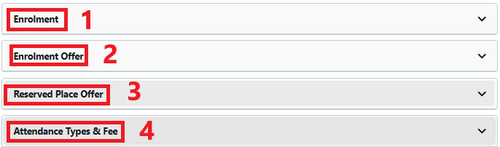
- Enrolment (Application) Fee
- Enrolment Offer Fee
- Reserved Place Offer (e.g. Scholarship) Fee
- Attendance Type & Fee
Creating Additional Payments at any stage where parents are unable to alter the amount
EnrolHQ now allows schools to setup optional payments as part of Application / Offer process. The payment can be fixed or the parent may opt for a different amount.
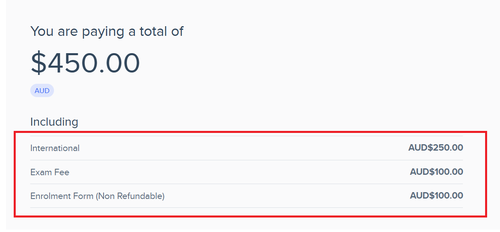
Each Form has the option of adding additional payment lines, editable by the parent. The example below has been set that the parent cannot adjust the amount payable.
To setup the preferred or recommended donation amount go to Settings>Payment Settings>Application and add the following:
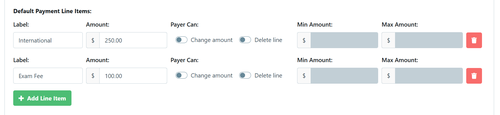
- A separate line will appear for each additional payment
- These details are displayed without the ability to adjust.
Creating Additional Payments at any stage where parents are able to alter the amount
EnrolHQ now allows schools to setup optional payments as part of Application / Offer process. The payment can be fixed or the parent may opt for a different amount.
Note: When making an Offer if the total payment has been split between the nominated parents the additional fee will also be split and if made editable each parent will be able to adjust the amount they will pay.
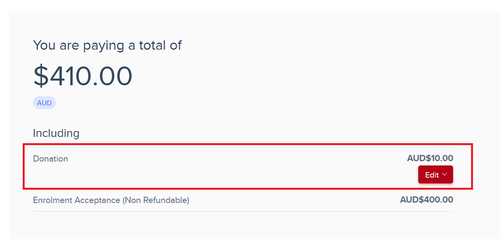
To setup the preferred additional amount or recommended donation amount go to Settings>Payment Settings> select the stage that they payment id required and add the following:

- Add a name for the additional payment option
- Set a suggested or requested amount
- Choose whether the payer can change the amount or delete the line
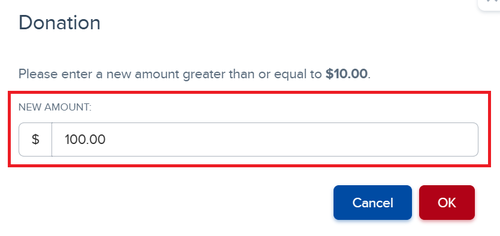
- A minimum payment of $10.00 is required. A maximum payment amount can be included
- Additional payment lines can be added
Note: If an Additional payment or Donation payment is setup for an Offer, the Donation amount is added to the Offer Payment amount total that is payable in the email template and can be split between both parents.
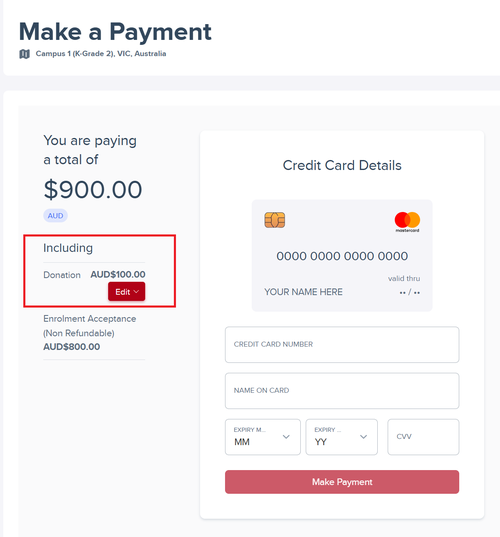
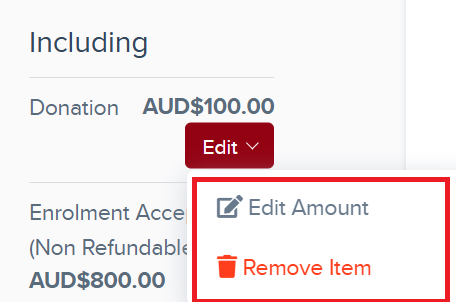
Parents follow the usual Offer acceptance process and have the ability to Edit or remove the additional payment.
Change the Amount (minimum allowed is $10)
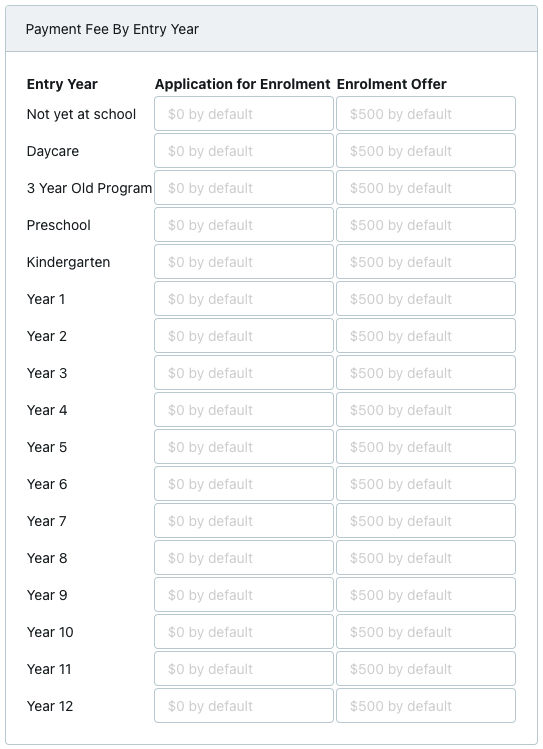
Payment Fee By Entry Grade
Choose if you need different payments for some specific years. These settings will override the default setting under application/offer etc.
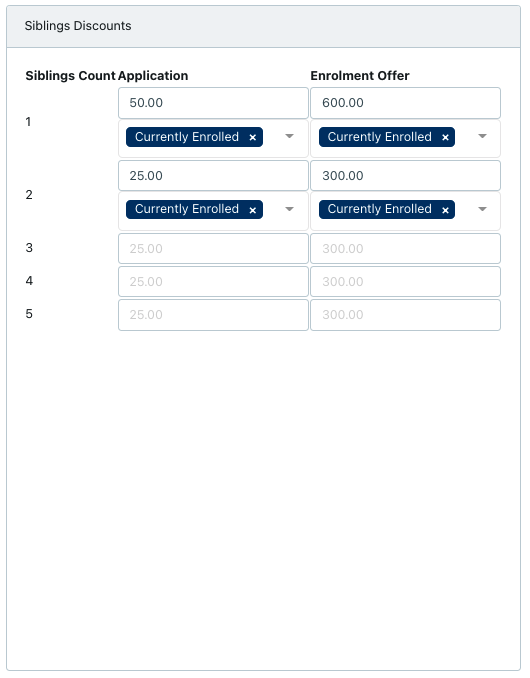
Sibling Discount
Choose if you need different payments based on the number of siblings. If a sibling with the correct status is registered, these settings will override the default setting under application/offer etc.
You can choose what status the discount should apply for. Some schools might want to include all siblings that have attended the school at any point in time, others might only count currently enrolled siblings.
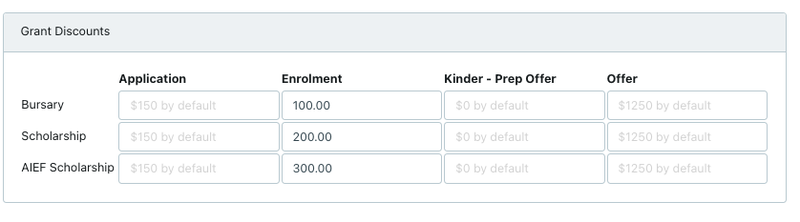
Grant Discount
Choose if you need different payments settings based on grants offered. You can choose that students applying for "Bursary" should have a different application fee than other students.