
This covers how to Update your personal user view preference and how to update the fields for all users.
Settings Table Columns / Tabs Update for all Users
If you want to update these settings for all users :
Go to > settings > Tables Columns / Tabs
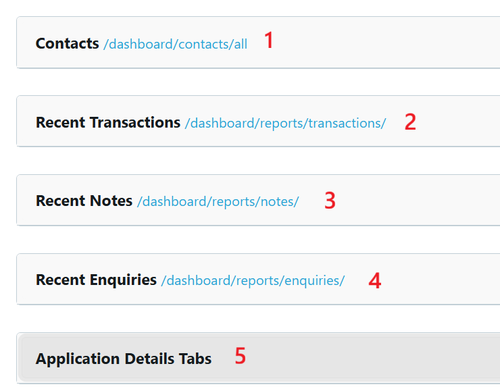
- Contacts
- Recent Transactions
- Recent Notes
- Recent Enquiries
- Application Details Tabs
1 Contacts - Update Your Personal Preference
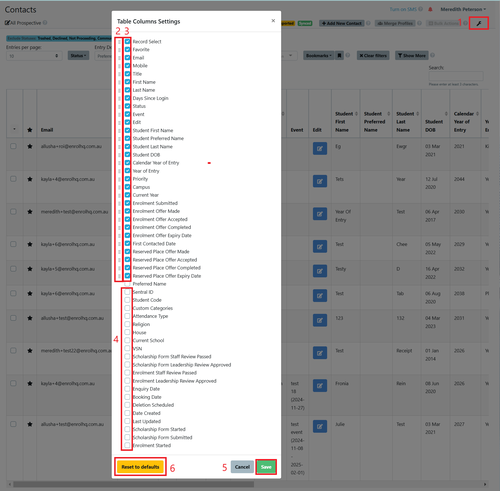
Individual users can now customise the Contact details to show tabs / fields in their preferred order.
Sign into EnrolHQ,
Go to Contacts
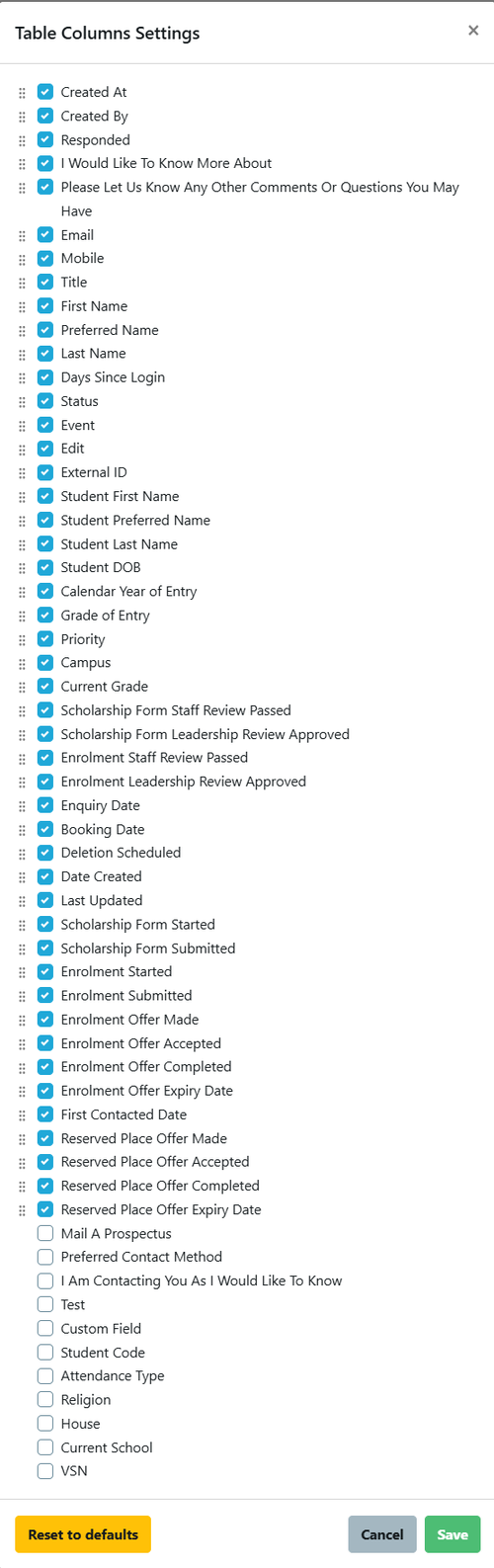
Select the Spanner in the top right hand corner

the following will appear
2 Recent Transactions - Update Your Personal Preference
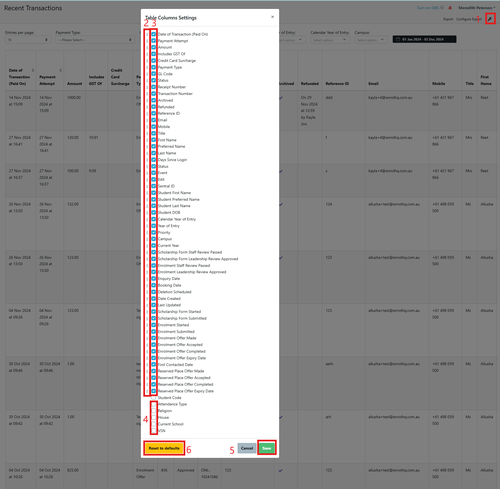
Individual users can now customise the Recent Transactions details to show tabs / fields in their preferred order.
Sign into EnrolHQ,
So to Reports > Transactions
Select the Spanner in the top right hand corner
3 Recent Notes - Update Your Personal Preference
Individual users can now customise the Recent Transactions details to show tabs / fields in their preferred order.
Sign into EnrolHQ,
Go to Reports > Notes
Select the Spanner in the top right hand corner
4 Recent Enquiries - Update Your Personal Preference
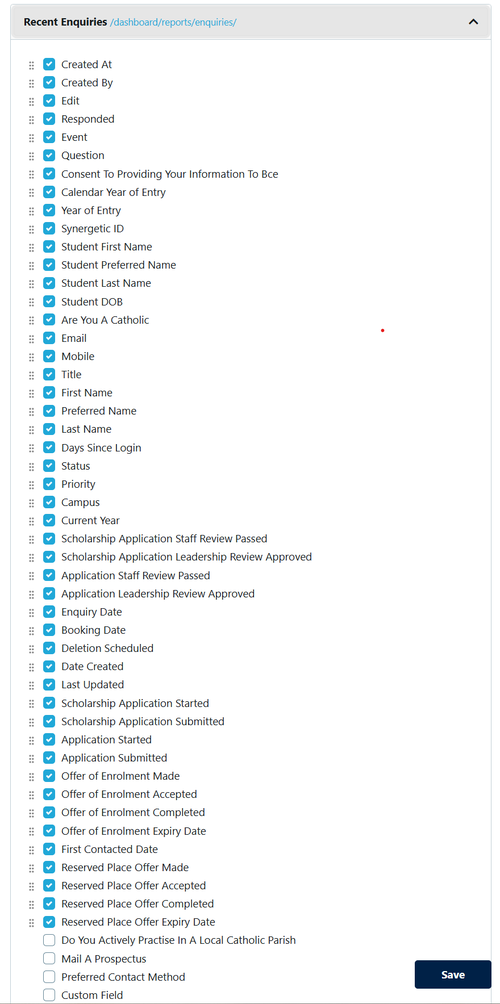
Individual users can now customise the Recent Enquiries details to show tabs / fields in their preferred order.
Sign into EnrolHQ,
Go to Reports > Enquiries
Select the Spanner in the top right hand corner
5 Applications Details Tabs - Update Your Personal Preference
Individual users can now customise the Applications Details Tabs in the Student Profile to show tabs / fields in their preferred order.
Sign into EnrolHQ, from main dashboard select "your name" in the top right hand corner.
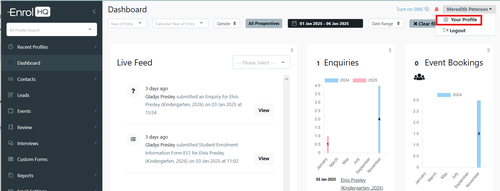
Select >Your Profile
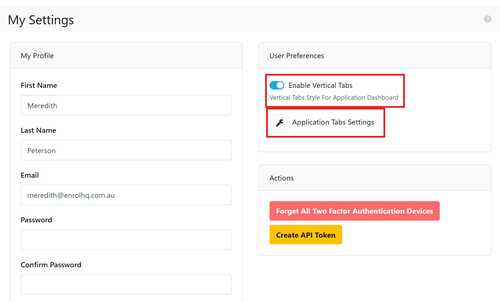
If you prefer to have the options listed on the top of the Student Profile unselect the "enable vertical tabs" ( the default is on)
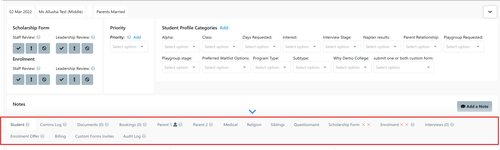
Below is an example of the Tabs Horizontal display and not the standard Vertical display.
To adjust the order of the Tabs Select > Application Tab Settings
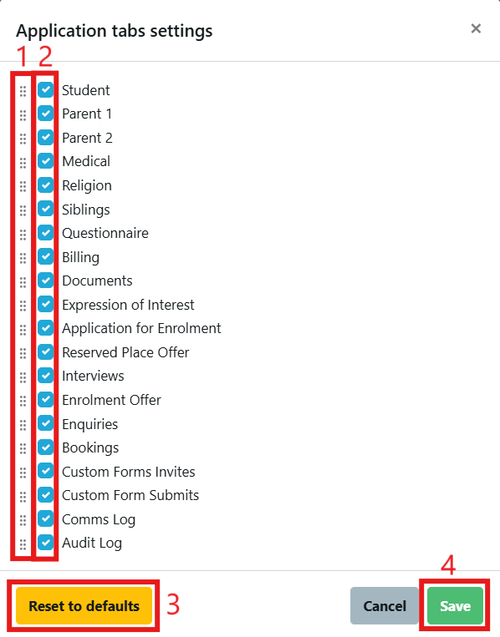
1 Use this column to drag and drop / reorder the tabs on the menu
2 Use the tick to disable/enable details to be viewed on the menu
3 Use this option to return the tabs to the default options
4 Save
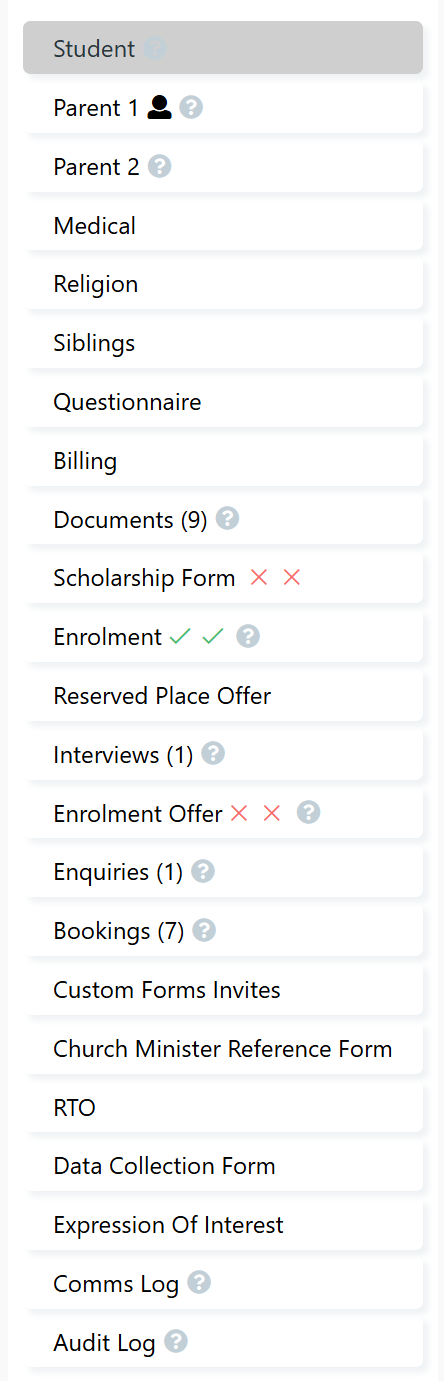
Below is a sample of the default Student Profile view (with some completed Custom Forms)
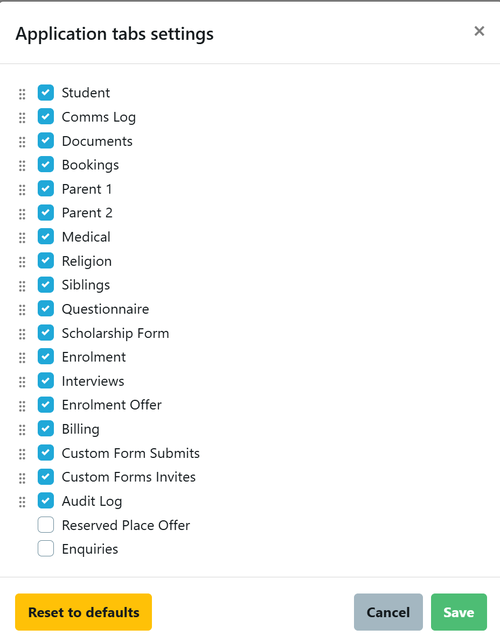
See the example of the changes selected (some items have been moved and others turned off as they are not in use)
See sample of the change in the display after the above selection has been saved.
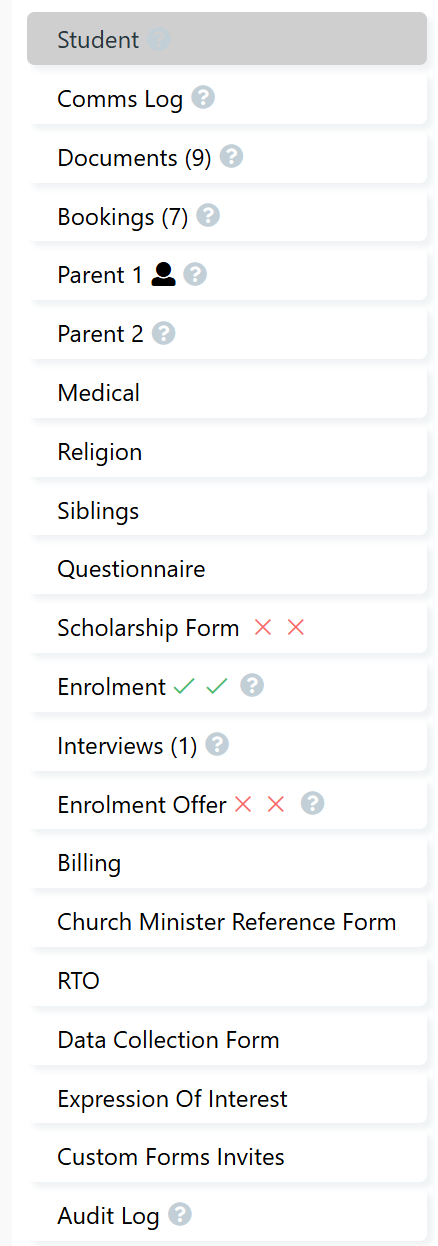
You can use the default to reset to default option to return all tabs to their previous order.