
How to Add Pre-School/ELC Specific Questions
Sometimes you may want to ask specific questions if, for example, the applicant is entering the schools Pre-School or ELC programs, for example what days of the week they would like to attend. You might also want to ask questions for Kindergarten/Prep (first year of primary school) entry, such as what pre-school they attended, and the contact name and number.
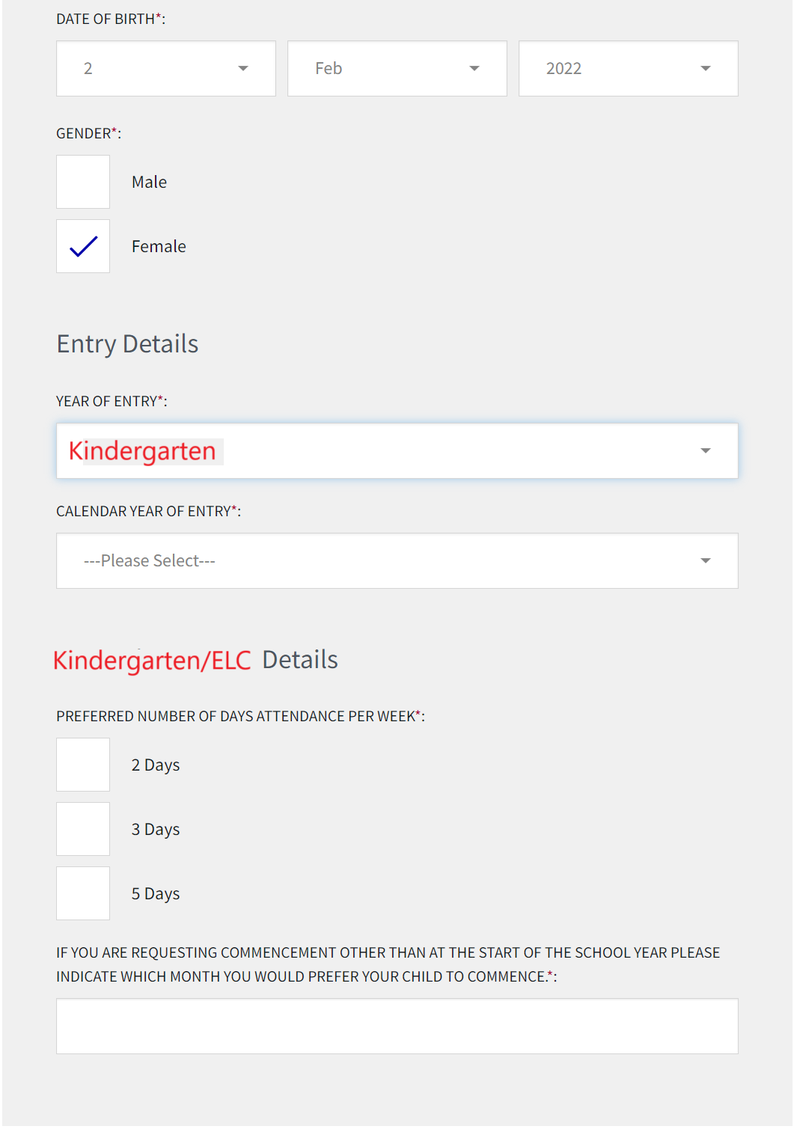
EnrolHQ form fields give you the ability to add a 'Preschool Questionnaire' that contains extra questions you want to ask only of those applicants who are applying for 'Pre-Primary' or '1st year of Primary'. The Preschool Questionnaire must be enabled in Settings > Year of Entry Settings to be available in the application.
Adding or Changing Questions
- Preschool Questionnaire
- Select an existing question to modify (you cannot remove answers, however you can disable a previous version of the question and make a new one to collect different answers)
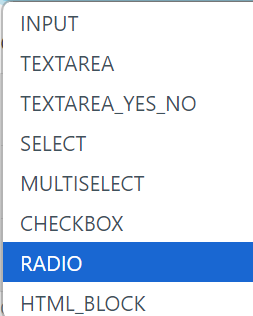
- Select 'Add field' - you must select what kind of response you require from the drop down box options
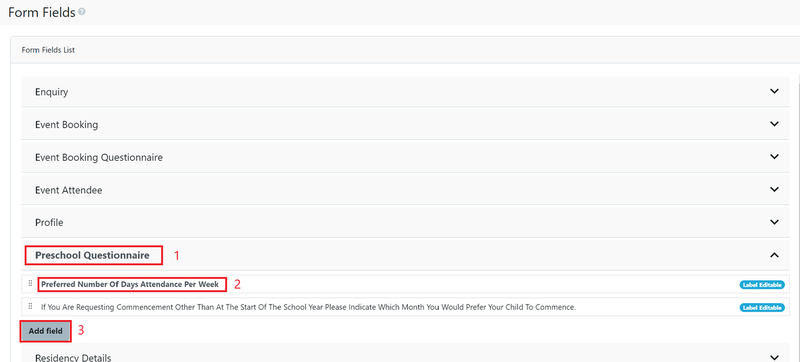
Each field must be given a name and an input field type.
- INPUT - is a single line box
- TEXTAREA - is a multiline box
- TEXTAREA_YES_NO is a multi-line box that shows only if [ Yes ] has been checked first
- SELECT - is a dropdown field where you have to enter the options
- MULTISELECT - is a dropdown where you have to enter the options but user can puck more than one answer
- CHECKBOX - is multiple choice where the user can choose multiple answers. You will have to enter the options
- RADIO - is a multiple-choice where the user can only choose one answer. You will have to enter the answers as per above example
- HTML_BLOCK - this is a block of text for you to provide for the parents to read.
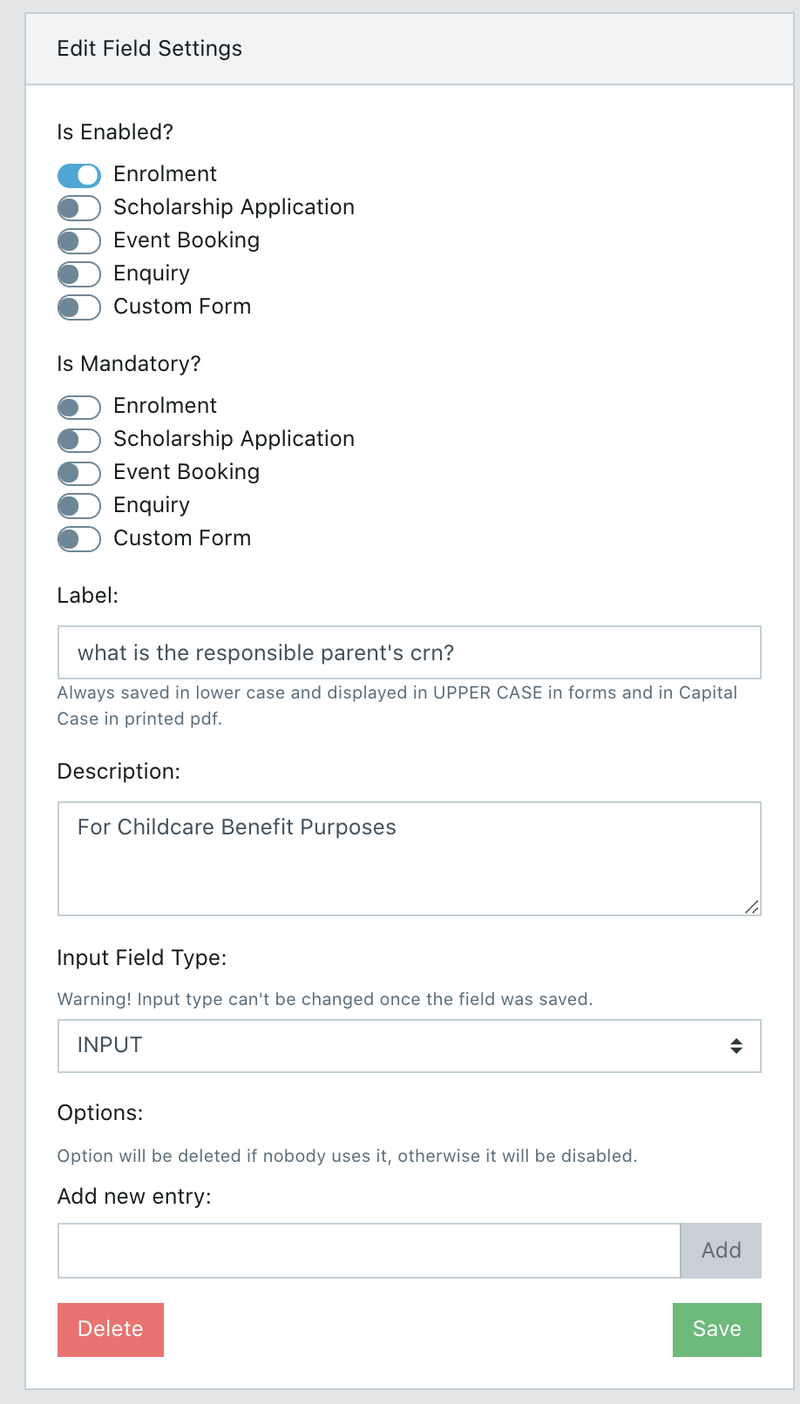
Don't forget to Save the field when you're done. For preschool questions, it is best practice to make them not mandatory unless you really need the information from parents. The more mandatory fields you have, the more places parents can get stuck.
Making the Questionnaire Available on Applications
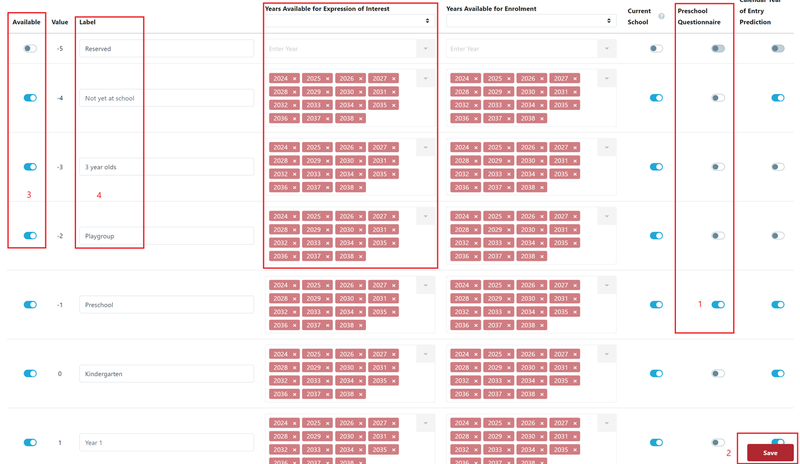
When you have created all your questions, you have to enable the questions to appear in your form when parents select the applicable 'Year Level of Entry'. (Renaming your Early Learning Years can be done in Settings > Year of Entry Settings.)
- Toggle - to turn on/off the Pre-school Questionnaire (default is off)
- Save - no changes will take effect unless you save
- Toggle - to turn on/off the year of Entry (default is off)
- Label - this is the Name year of Entry (these can be altered to suit as required)
- Enter Year - These are the years available for application etc (additional years should be added as required)
The Pre-school Questionnaire is shown on the student profile tab with the responses the parent selected at the time of application.