Step-by-step instructions on how to set up an alternative email templates for Enrolment Offers and activating a different enrolment stage
Alternate Offer Template
Although there are standard email templates set up for enrolment offers you may find that you need to create alternative templates. The wording of an offer for a family with a second or third child being offered may be significantly different. You may also wish to setup a Scholarship Offer Email Template or an International Offer Template.
- Email Settings > Templates > Application for Enrolment > Add
- select the relevant type of template (Make Enrolment Offer for Parent or Make Reserved Place of Offer for Parent
You can also copy an existing template that is similar to the one you wish to create and modify the details it to suit.
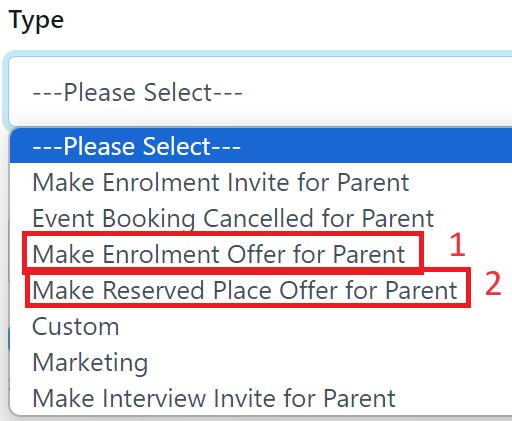
- Make Enrolment Offer for Parent - Select this type of template for an alternate to your existing Offer template
- Make Reserved Place Offer for Parent - Select this type of template is you are creating either a Scholarship or International or other type of offer
Important Note on Copying Text
If you copy information from another template or document outside of EnrolHQ, you must use the "paste as plain text option" (Ctrl+Shft+V). This will ensure no legacy formatting is included inside the new template. Formatting errors may not be visible when you Preview the email, however they could appear when viewing the email on a mobile device. You must also copy all links within the template i.e. Enrolment Dashboard.
The fastest way to create an additional Offer template is to duplicate your existing template
- Email Settings > Templates > Enrolment/Reserved Place Offer > Enrolment Make Offer Parent
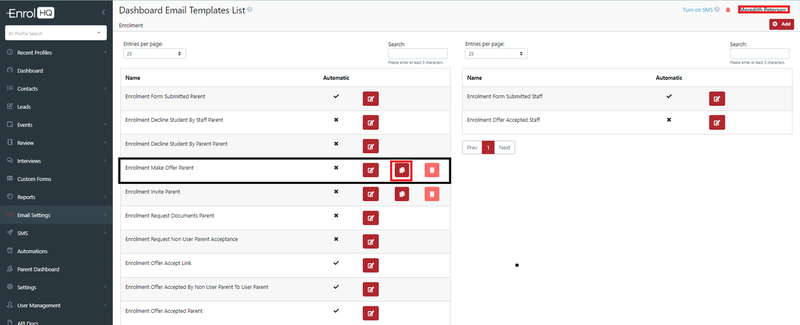
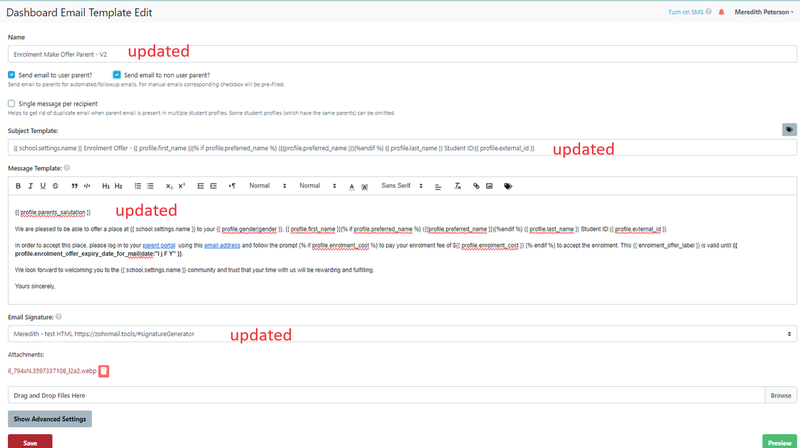
Once the template has been duplicated make sure you change the Name of the template and the Subject Template.
Unchanged duplicate template:
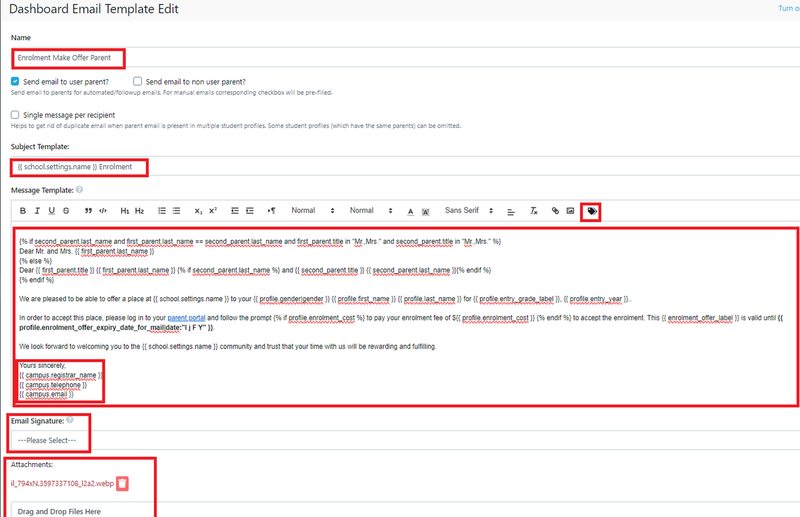
Updated V2:
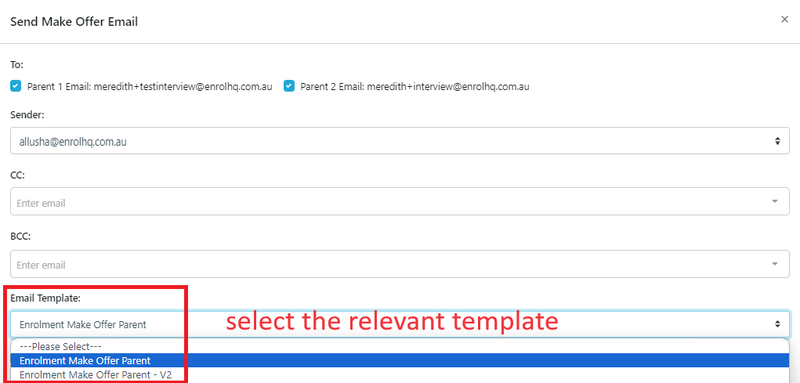
When you want to use an alternate offer template, go to the Student Profile. When the student is in Offer stage, select "Make an Offer" and choose the template you wish to use.
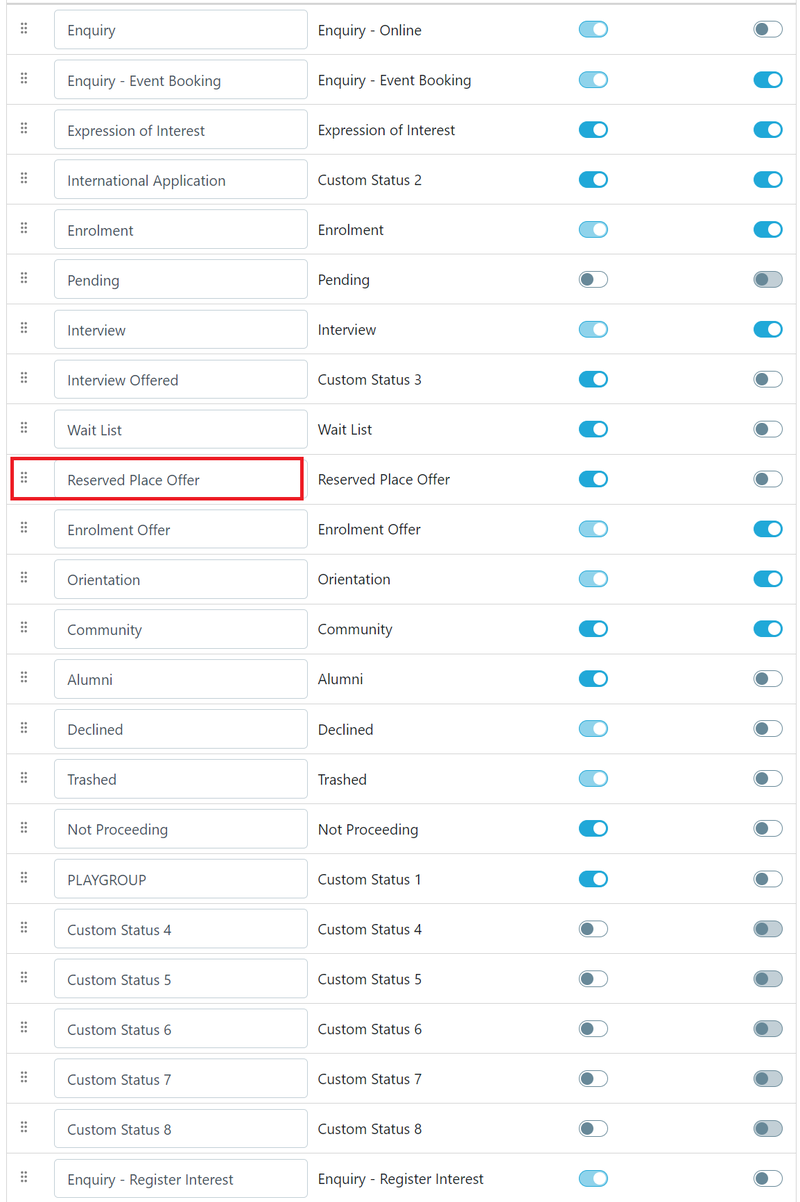
Activating the Reserved Place Offer
If you do not currently use "Reserved Place Offer" you will need to complete the steps below.
- Settings > Enrolment Journey Stages
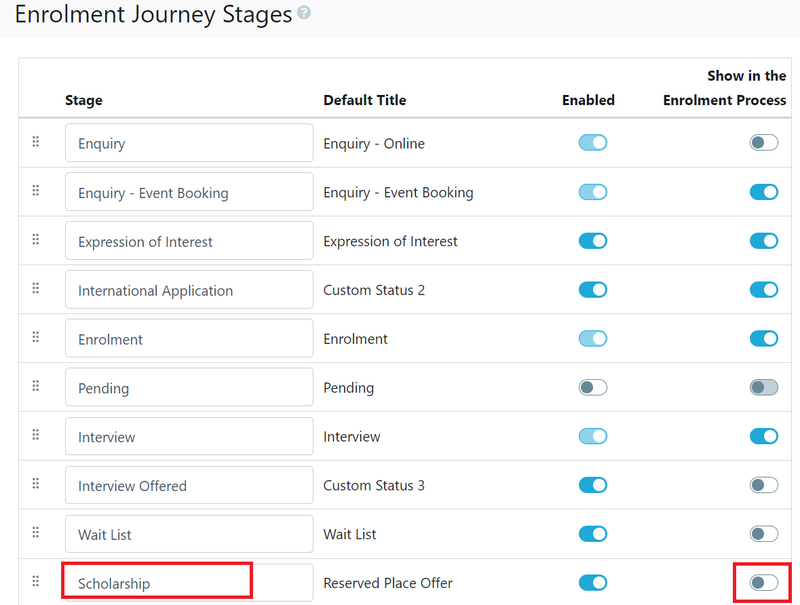
You can rename the Stage e.g. Scholarship. Select Reserved Place Offer and type the new name, then Save.
In this example the name of the Reserved Place offer has been changed to Scholarship. If you want the step to show on the Enrolment Dashboard, you need to switch the toggle on.
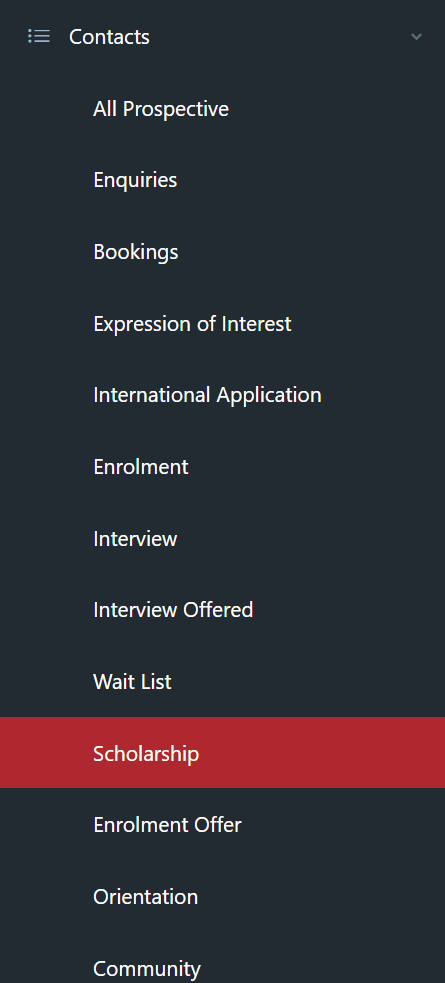
The name change will be reflected in the Contacts list.
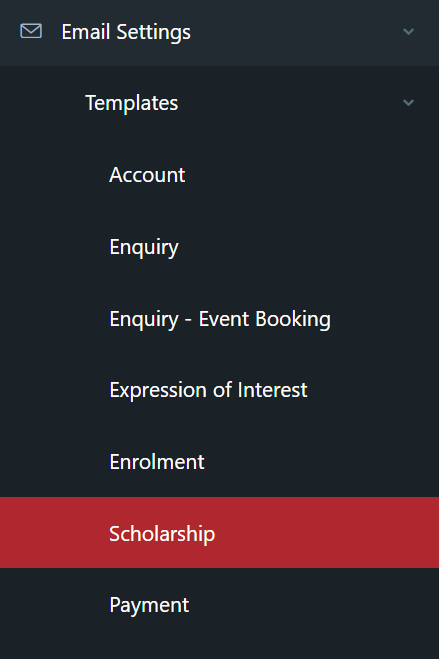
and the Email Templates list
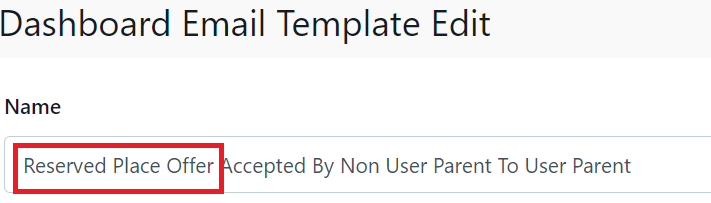
Within the Email Templates the individual templates will need to be updated to reflect the new name.
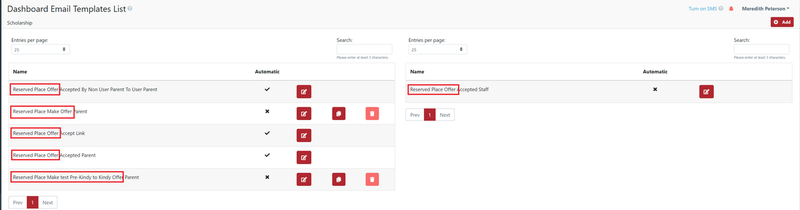
The name will only need to be updated inside the template as the tag will reflect the new name within the form.